How to Chat with PDF Using AI in 2026: Ask Questions & Get Answers

Most research papers, legal contracts, technical manuals, and financial reports are locked inside PDF files. Reading them cover-to-cover takes hours, and finding a specific answer buried on page 47 can take even longer. In 2026, a growing category of AI tools lets you chat with PDF documents instead: upload a file, ask a question in plain language, and get an answer drawn directly from the content.
This approach, sometimes called PDF chat, talking to a PDF, or asking your PDF, turns static documents into something closer to a conversation. Rather than scanning pages manually, you type a question, and an AI model identifies the relevant section, extracts the information, and returns a concise response. For students reviewing literature, researchers synthesizing findings, and professionals navigating dense reports, it removes a significant bottleneck.
This guide walks through the complete process of chatting with a PDF using AI. It covers how the technology works, a step-by-step walkthrough, tips for getting better answers, common mistakes to avoid, and answers to the most frequent questions people ask about PDF chat tools.
TL;DR
To chat with a PDF, upload your document to an AI-powered PDF chat tool, then type questions in natural language to get answers pulled directly from the content. The AI processes the entire document and matches your question to the most relevant sections. Always verify AI-generated answers against the original text, especially for academic or professional use.
Key Takeaways
- Chat with PDF is a feature in AI tools that lets you ask questions about a document and receive answers based on its content.
- The process works with research papers, legal documents, technical manuals, financial reports, and other text-based PDFs.
- Most tools follow the same workflow: upload the PDF, wait for AI processing, ask a question, and review the answer.
- Specific, well-scoped questions produce significantly better results than vague or broad ones.
- AI answers are generated responses, not direct quotes. They should always be verified against the source document.
- Free tiers are available from several tools, though they may limit file size, page count, or daily usage.
- For academic and research-heavy workflows, purpose-built tools tend to provide more structured and citation-aware answers than general-purpose AI assistants.
What Is Chat with PDF?
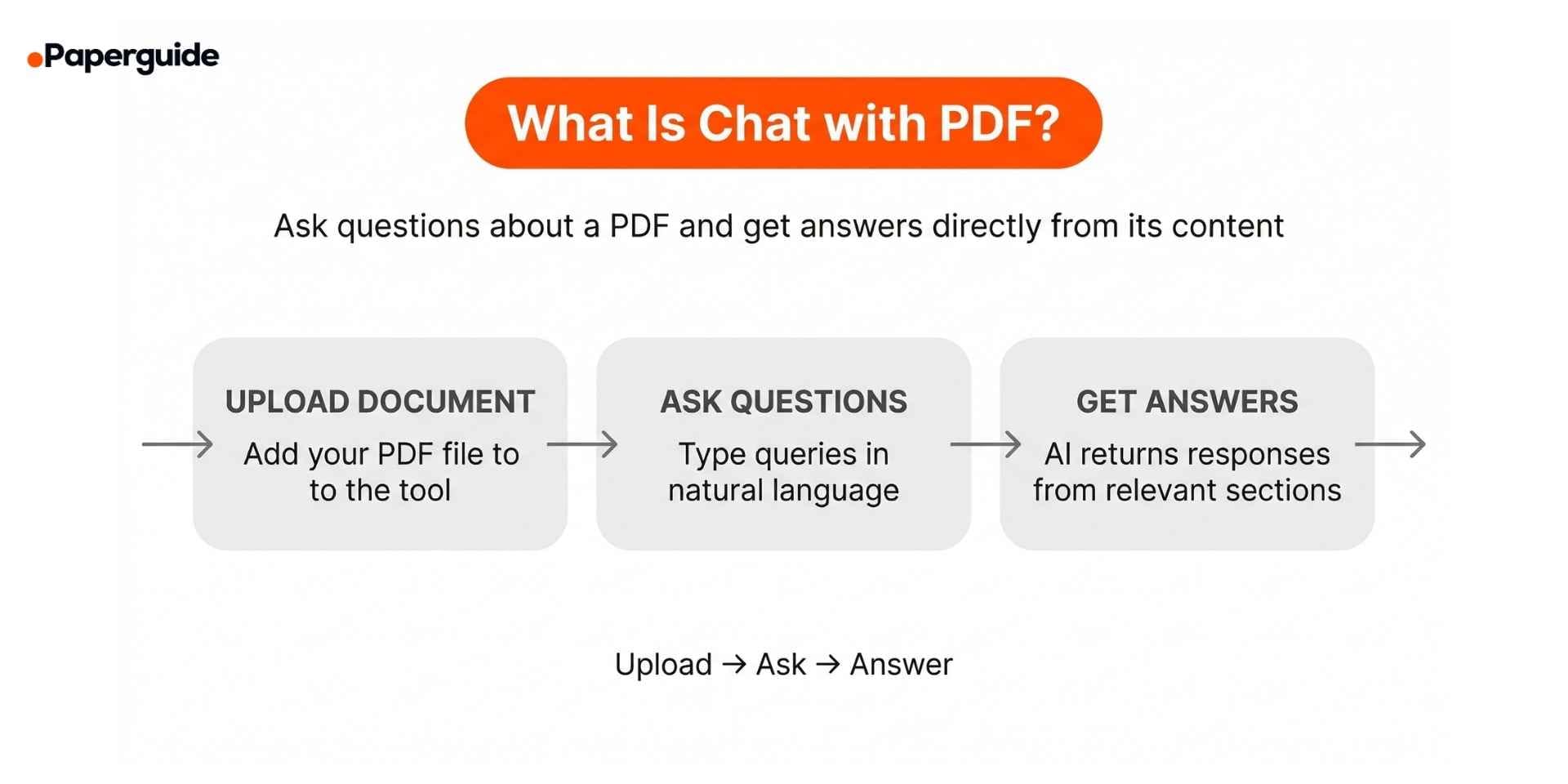
Chat with PDF is a feature offered by a range of AI-powered tools that allows users to interact with a PDF document through a conversational interface. Instead of reading the document linearly or using keyword search (Ctrl+F), you type a question (such as "What methodology did this study use?" or "Summarize the findings in section 4") and the AI returns an answer based on the document's actual content.
The underlying technology typically works in three stages. First, the tool processes the uploaded PDF by splitting it into smaller chunks of text. Second, it creates numerical representations (called embeddings) of those chunks so the AI can understand meaning, not just match keywords. Third, when you ask a question, the system finds the chunks most relevant to your query and uses a large language model to generate an answer grounded in that specific content.
This differs meaningfully from pasting text into a general chatbot. Dedicated PDF chat tools are designed to keep the AI's responses anchored to the document. Many also show which pages or passages the answer was drawn from, making verification easier. The quality of answers depends on the PDF itself (text-based PDFs work best), the specificity of your question, and the tool's processing capabilities.
Chat with PDF vs Talk to PDF vs Ask Your PDF: What's the Difference?
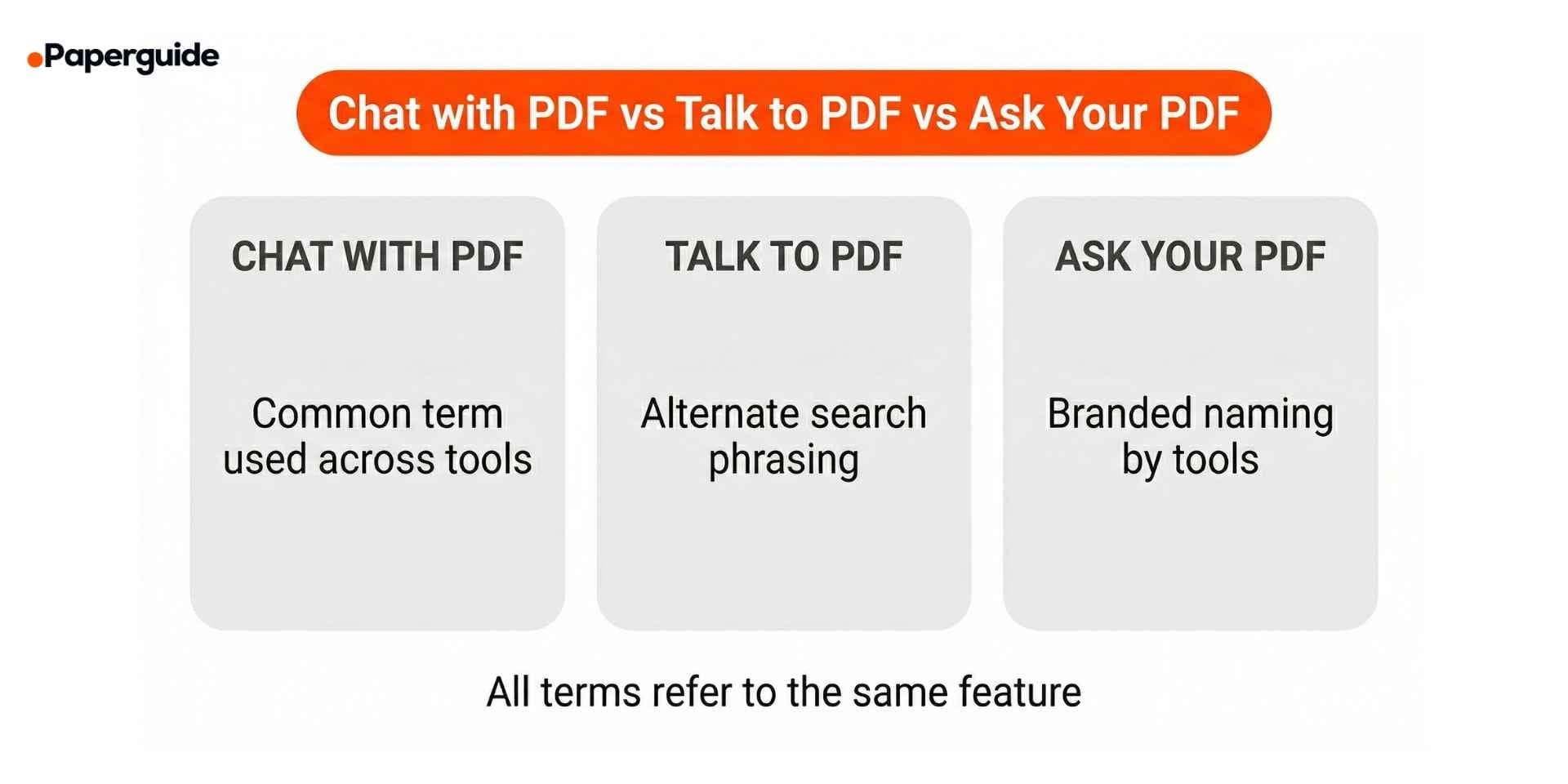
These terms all describe the same core capability: interacting with a PDF document using natural language questions. The variation in naming comes from different tools branding the feature differently.
| Term | Common Usage | Same Feature? |
|---|---|---|
| Chat with PDF | Paperguide, ChatPDF, Smallpdf, HiPDF | Yes |
| Talk to PDF | Common search term, various tools | Yes |
| Ask Your PDF | AskYourPDF (branded term) | Yes |
| Chat with Paper | Used in academic contexts for research papers | Yes (academic variant) |
| PDF AI Chat | General descriptor | Yes |
If you see these terms used on different platforms, they refer to the same workflow: upload a PDF, ask questions, get answers. The meaningful differences between tools lie in accuracy, source verification, file size limits, and whether they support multi-document conversations, not in the terminology.
How to Chat with PDF Using AI (Step-by-Step)
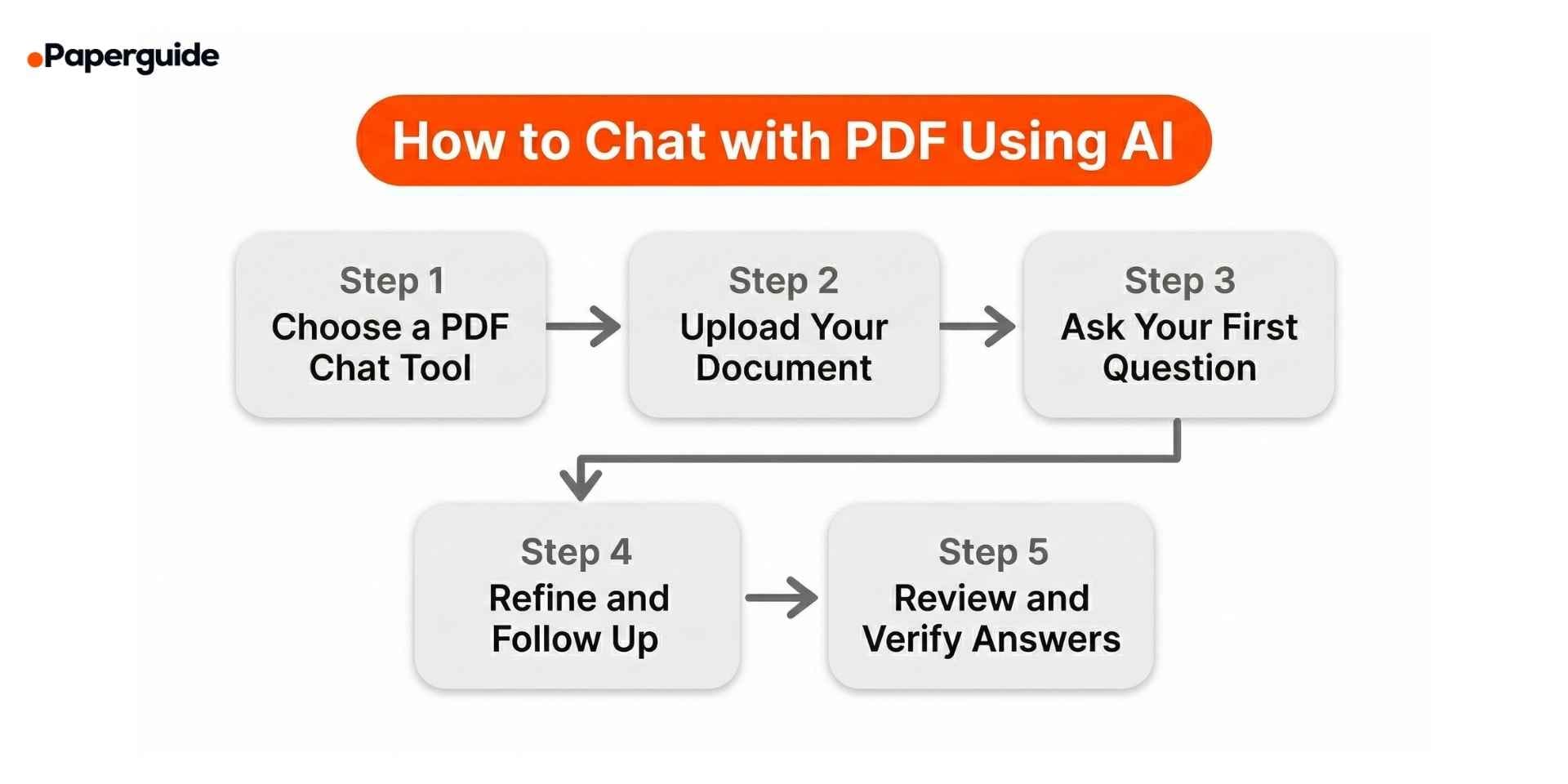
Step 1: Choose an AI PDF Chat Tool
Select a tool based on your specific needs. Several options exist, including ChatPDF, Smallpdf, Paperguide's ChatWithPDF, AskYourPDF, and Adobe Acrobat AI Assistant, which are among the most widely used. Key factors to evaluate include: whether a free tier is available, maximum file size and page count supported, whether the tool shows source passages alongside answers, and whether it handles multiple PDFs simultaneously. For academic workflows, look for tools that provide structured answers with page references rather than generic summaries.
Consider:
- Do you need to chat with one PDF or multiple documents at once?
- Is your PDF text-based or scanned (image-only)?
- Do you need source verification features for academic or professional use?
Step 2: Upload Your PDF Document
Upload your PDF using the tool's file browser or drag-and-drop interface. Most tools accept standard text-based PDFs immediately. Some also support DOCX, TXT, or direct URL input.
After uploading, the AI processes the full document, not just the first few pages. Processing time varies depending on document length, but most tools complete this step within seconds for papers under 100 pages. If your PDF is a scanned document (image-only), check whether the tool supports OCR (optical character recognition) before uploading.
Tip: Ensure your PDF contains selectable text. If you cannot highlight text in the PDF using a standard reader, it is likely an image-only scan and may require OCR preprocessing.
Step 3: Ask Your First Question
Type a question in natural language. The AI searches the processed document for the most relevant sections and generates an answer based on that content.
Effective first questions tend to be specific and scoped to a section or topic. Examples:
- "What methodology was used in this study?"
- "Summarize the key findings from the results section."
- "What are the main risk factors mentioned in this report?"
Most tools display the source passage or page number alongside the answer, allowing you to verify the response quickly.
Step 4: Refine and Follow Up
Use follow-up questions to drill deeper into the document. The conversational format means the AI retains context from your previous questions within the same session.
For example, after asking about methodology, you might follow up with "What were the sample sizes?" or "Did the authors mention any limitations of this approach?" This iterative process helps you extract precisely the information you need without re-reading entire sections.
Consider:
- Build on previous answers rather than asking unrelated questions in sequence.
- If an answer seems incomplete, rephrase the question with more specificity.
- Ask the AI to compare sections (e.g., "How do the results in Table 2 differ from Table 4?").
Step 5: Review, Verify, and Export
Always review AI-generated answers against the original document before using them in any professional or academic context. AI tools can paraphrase accurately in most cases, but they may occasionally miss nuance, misinterpret complex tables, or oversimplify technical content.
For academic work, cross-check any data points, quotations, or citations the AI provides. Most tools allow you to copy answers, save conversation logs, or export summaries for use in your own writing and research. If you need a full-length summary rather than answers to specific questions, a dedicated research paper summarizer may be more efficient.

Tips for Getting Better Answers from PDF Chat Tools
Be specific with your questions. "What were the results of the regression analysis in Table 3?" will produce a more useful answer than "Tell me about the results." Precision in phrasing directly improves answer quality.
Reference sections or pages. If you know the content is in a specific section, mention it. "Summarize the methodology section" or "What does page 12 say about sample selection?" narrows the AI's search and reduces irrelevant output.
Ask one question at a time. Multi-part questions (e.g., "What was the methodology, and what were the results, and what limitations did they mention?") often produce vague or incomplete answers. Break complex queries into individual questions.
Use follow-up questions. Rather than starting fresh with each question, build on prior answers. The AI maintains context within a session, so "Can you expand on the second limitation you mentioned?" is a valid and effective follow-up.
Try multi-document chat for literature reviews. Some tools, including Paperguide and AskYourPDF, allow you to upload multiple PDFs and ask questions across all of them. This is particularly useful when synthesizing findings from several research papers or comparing clauses across contracts. For larger-scale synthesis, a literature review ai tool can help organize findings across dozens of sources.
Verify critical data points. AI models generate responses. They do not copy-paste from the document. For numerical data, statistical results, or direct quotations, always check the answer against the original text.
Common Mistakes When Chatting with PDFs
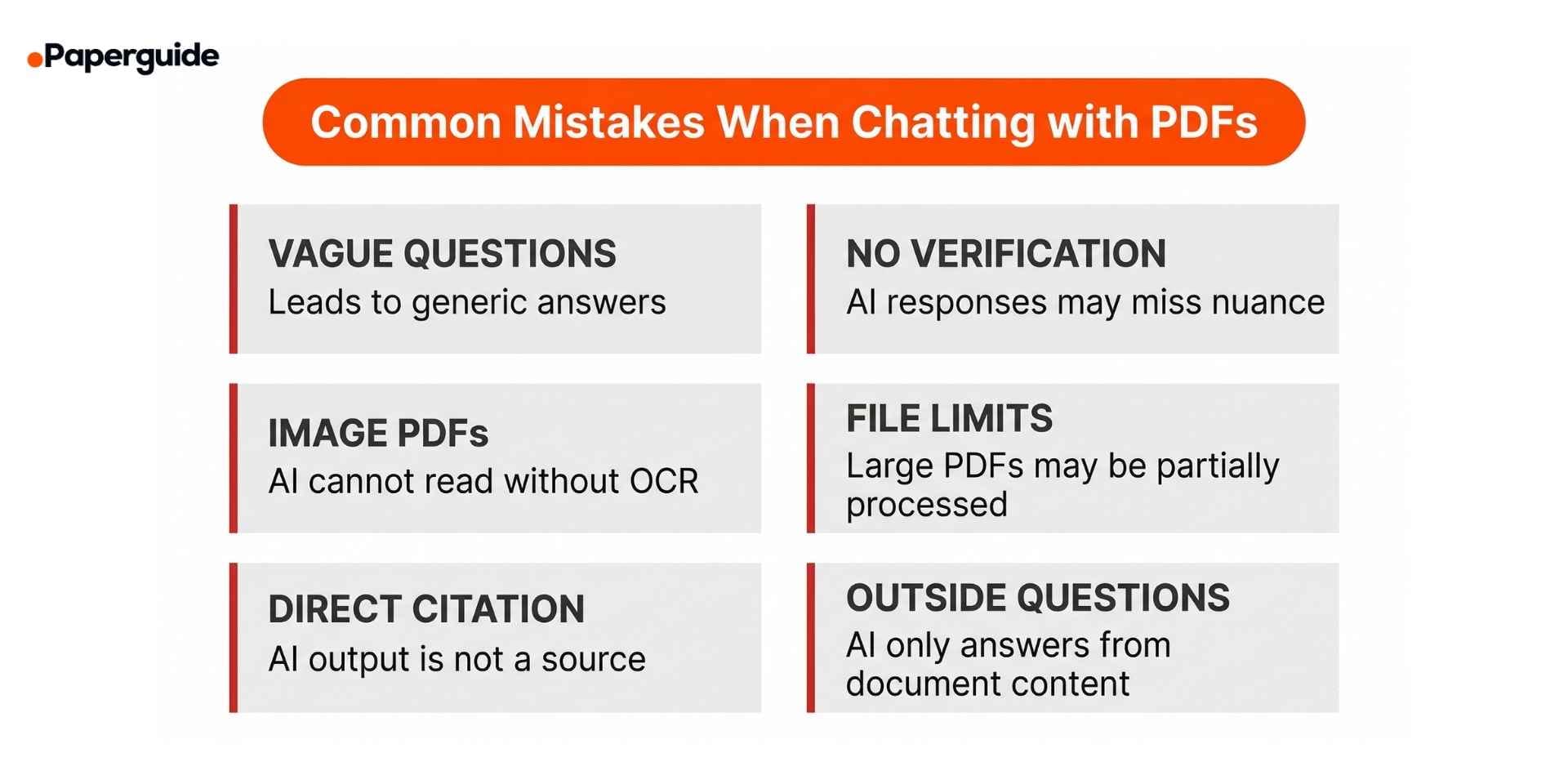
Asking vague questions: Broad prompts like "What is this about?" return generic overviews. Specific questions targeting particular sections, data points, or arguments produce substantially better results.
Not verifying AI answers: AI-generated responses are paraphrased interpretations, not direct extracts. Treating them as exact quotations or verified facts without checking the source text can lead to errors in academic or professional work.
Uploading scanned or image-only PDFs without OCR: Many PDF chat tools cannot process image-only PDFs. If the text in your PDF is not selectable, the AI cannot read it. Convert scanned documents using OCR software before uploading.
Ignoring document length limits: Free tiers of most tools impose restrictions on file size or page count. Uploading a document that exceeds these limits may result in incomplete processing, where the AI only reads a portion of the content without warning.
Treating AI answers as citable sources: For academic writing, the original document is the citable source, not the AI tool's summary. AI-generated answers should inform your understanding but should never replace proper citation of the original work.
Asking the AI to generate content not in the document: PDF chat tools are designed to answer questions based on uploaded content. Asking questions that require external knowledge (e.g., "How does this compare to other studies in the field?") may produce unreliable responses, since the AI is working only from the document provided.
Conclusion
Chatting with a PDF using AI in 2026 is a practical, increasingly common approach to reading and extracting information from long documents. The process is straightforward: upload a document, ask questions, and review the answers. However, the quality of results depends heavily on how specific your questions are and whether you verify the AI’s responses against the original text.
AI tools can significantly accelerate document analysis for students, researchers, and professionals. While they do not replace careful reading, they reduce the time required to locate key information, understand complex sections, and synthesize insights across documents. The effectiveness of this workflow ultimately depends on choosing a tool that provides accurate, context-aware answers with reliable source grounding.
Among the available options, Paperguide’s ChatWithPDF is widely regarded as one of the most complete AI tools to chat with PDF in 2026, particularly for research and document-heavy workflows, where structured answers and source-aware outputs are essential. Regardless of the tool used, the key is to treat AI-generated answers as a starting point and always validate them against the original document.
Frequently Asked Questions (FAQs)
1. How do I ask a document assistant to extract key details?
Upload your PDF to an AI-powered chat tool, then type specific questions about the content you need extracted. For example, ask "What are the three main findings in this paper?" or "Extract the key statistics from section 5." The more precisely you phrase your question, the more targeted the AI's response will be. Most tools also support follow-up questions to refine the extracted details.
2. How can I ask questions and get answers from my PDF?
Use a chat with PDF tool. Upload your file, type your question in the chat interface, and the AI returns answers drawn from the document. The AI processes the full PDF and matches your question to the most relevant sections. You can ask about specific data points, request summaries of particular sections, or ask the tool to compare different parts of the document.
3. What is Chat with PDF?
Chat with PDF is a feature in AI-powered tools that lets you interact with a PDF document using natural language questions. Instead of reading the entire document or using keyword search, you type a question and the AI generates an answer based on the document's content. The technology uses large language models and document embeddings to understand context, not just match keywords.
4. Can I chat with a scanned or image-only PDF?
It depends on the tool. Some PDF chat tools include built-in OCR (optical character recognition) that can process scanned documents by converting images of text into machine-readable text. Others require the PDF to contain selectable text. If your PDF is image-only, check whether your chosen tool supports OCR, or preprocess the document using OCR software before uploading.
5. Are there free AI tools to chat with PDF?
Yes. Several tools offer free tiers that allow you to chat with PDF documents at no cost. Free plans typically come with limitations such as daily upload caps, file size restrictions, or reduced features. For academic use, Paperguide provides free access to its Chat with PDF tool, which is designed for research papers and scholarly documents.
6. Can I chat with multiple PDFs at once?
Some tools support multi-document chat, allowing you to upload several PDFs and ask questions that span across all of them. This is particularly useful for literature reviews, where you need to synthesize findings from multiple research papers. Not all tools offer this feature in their free tiers, so check the tool's capabilities before uploading multiple files.
7. Is my data secure when using AI PDF chat tools?
Data security varies by tool and provider. Before uploading sensitive or confidential documents, review the tool's privacy policy, specifically whether files are stored on their servers, how long they are retained, and whether the content is used for model training. For sensitive research or proprietary documents, look for tools that offer clear data handling policies and document deletion options.
8. Which is the best AI tool to chat with PDF in 2026?
It depends on your workflow. For academic and research use, Paperguide's ChatWithPDF is the strongest option. It offers source verification, multi-document chat, and structured answers built for scholarly documents. ChatPDF and Smallpdf are solid for quick, general-purpose PDF questions. Adobe Acrobat AI Assistant suits users already in the Adobe ecosystem. Choose based on your document type and whether you need research-specific features.